
BabelBird MCP
BabelBird MCP is a standards-based bridge between enterprise files and AI agents. Codex, WorkBuddy, OpenClaw, and other MCP-compatible agents can find and read authorized files, query enterprise knowledge, retrieve similar images, and upload project outputs to an authorized BabelBird folder.
MCP does not bypass BabelBird permissions. Effective access is the intersection of the user's existing permissions, API Key scopes, allowed folders, and enterprise security policy.
The fixed BabelBird public-cloud MCP URL is https://www.babel.cc/mcp. Every public-cloud user connects to this same URL and is identified and authorized by their own API Key. Creating another API Key does not create another MCP URL.
What It Can Do
| Capability | Agent action | Main tools |
|---|---|---|
| Project workspace | Select an authorized folder as the project workspace | babel_get_workspace, babel_set_workspace |
| Recent uploads | Get recently uploaded or updated files | babel_get_recent_files |
| Knowledge query | Query the BabelBird vector store and return source files | babel_query_knowledge |
| Similar images | Find similar images from text or an existing image | babel_find_similar_images |
| File-name search | Search file names by keyword | searchFileNameByKey |
| Folders and metadata | List a folder or resolve information by path | ListFolder, getFileInfoByPath |
| Read and download | Read content or request a download URL | getFileContent, getDownloadUrl |
| Create and upload | Create a folder and request an upload URL | createFolder, getUploadUrl |
| Usage and quota | Check used storage and available quota | getUsageAndQuota |
Five-Minute Quick Start
1. Create a Dedicated API Key
In BabelBird, open “Settings > API Keys” and select “Create API Key.” A user can create multiple API Keys. Use a separate key for each agent and purpose, such as Codex-Engineering, WorkBuddy-Marketing, or OpenClaw-Knowledge, so each credential can have its own scope, audit trail, and lifecycle.
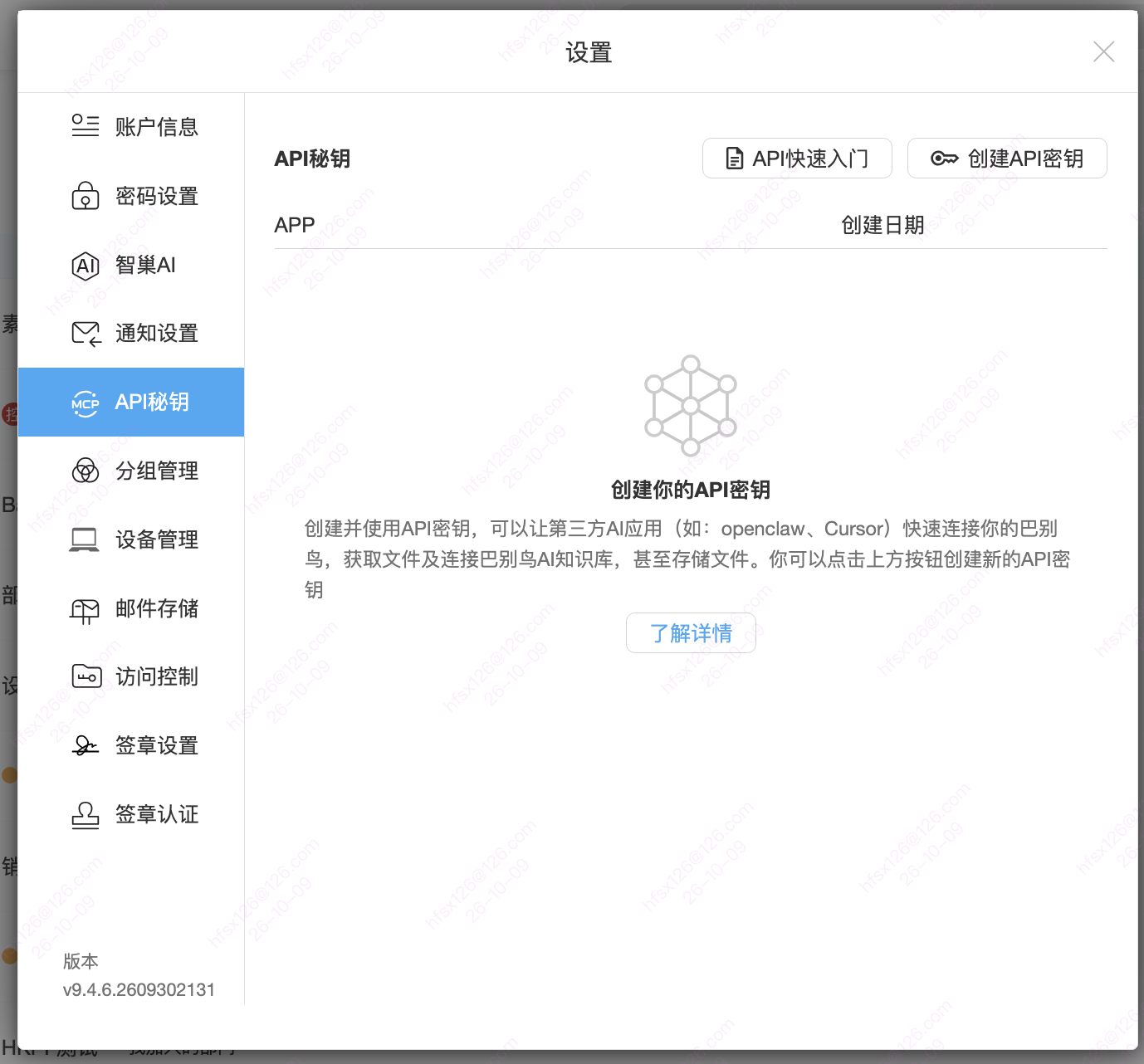
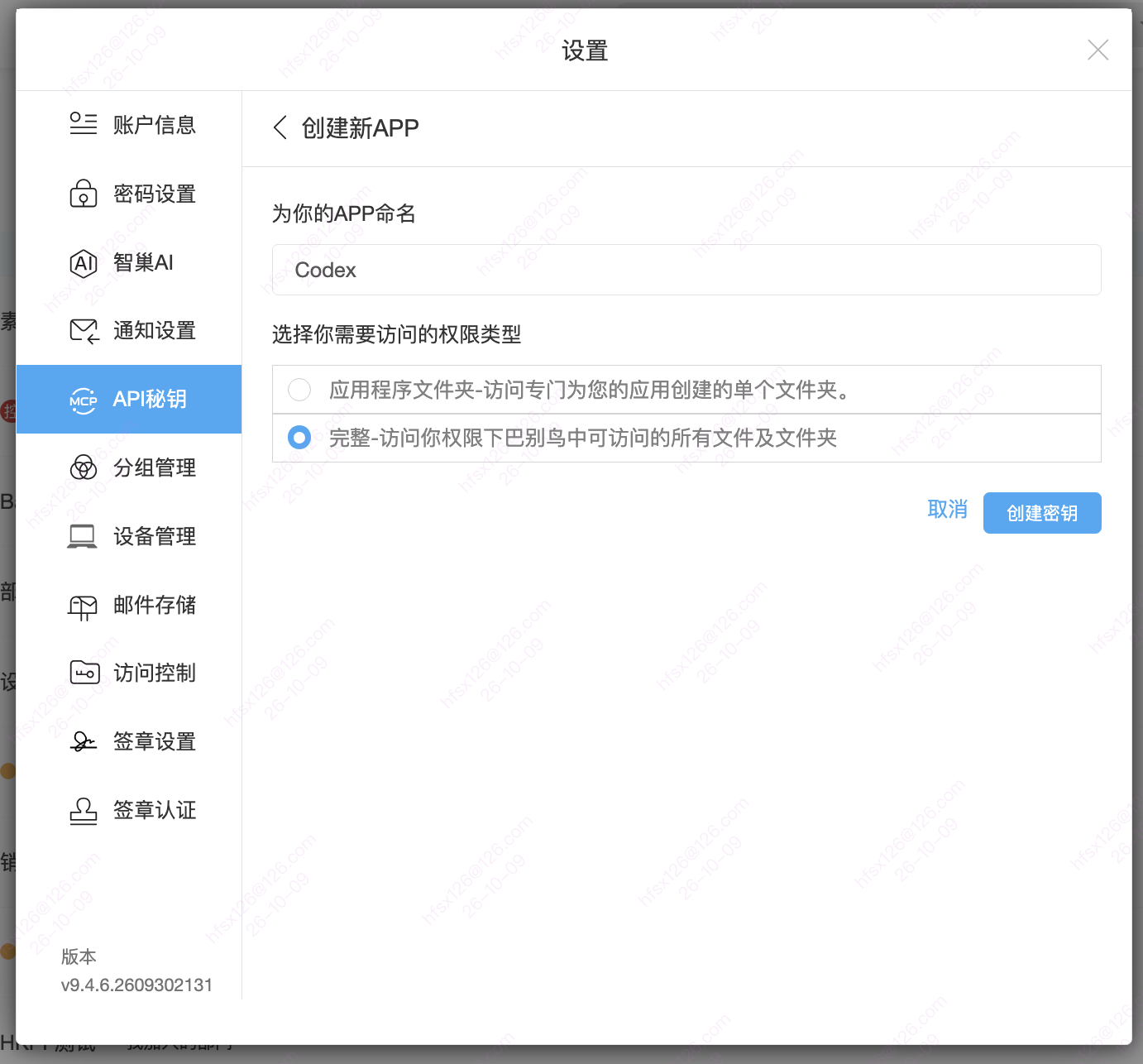
After selecting Create API Key, enter an application name and choose an access type:
- Application folder: BabelBird creates one dedicated folder for the application. The agent can only access that folder, making this the preferred choice for a bounded project workspace.
- Full access: the application can access files and folders the current user is already allowed to access. Use this broader option only when cross-folder retrieval is required.
2. Copy the API Key or AI Connection Prompt
Open the application's details page. For MCP, use the APIKey near the top of this page, not the APP Key or APP Secret under Advanced Options.
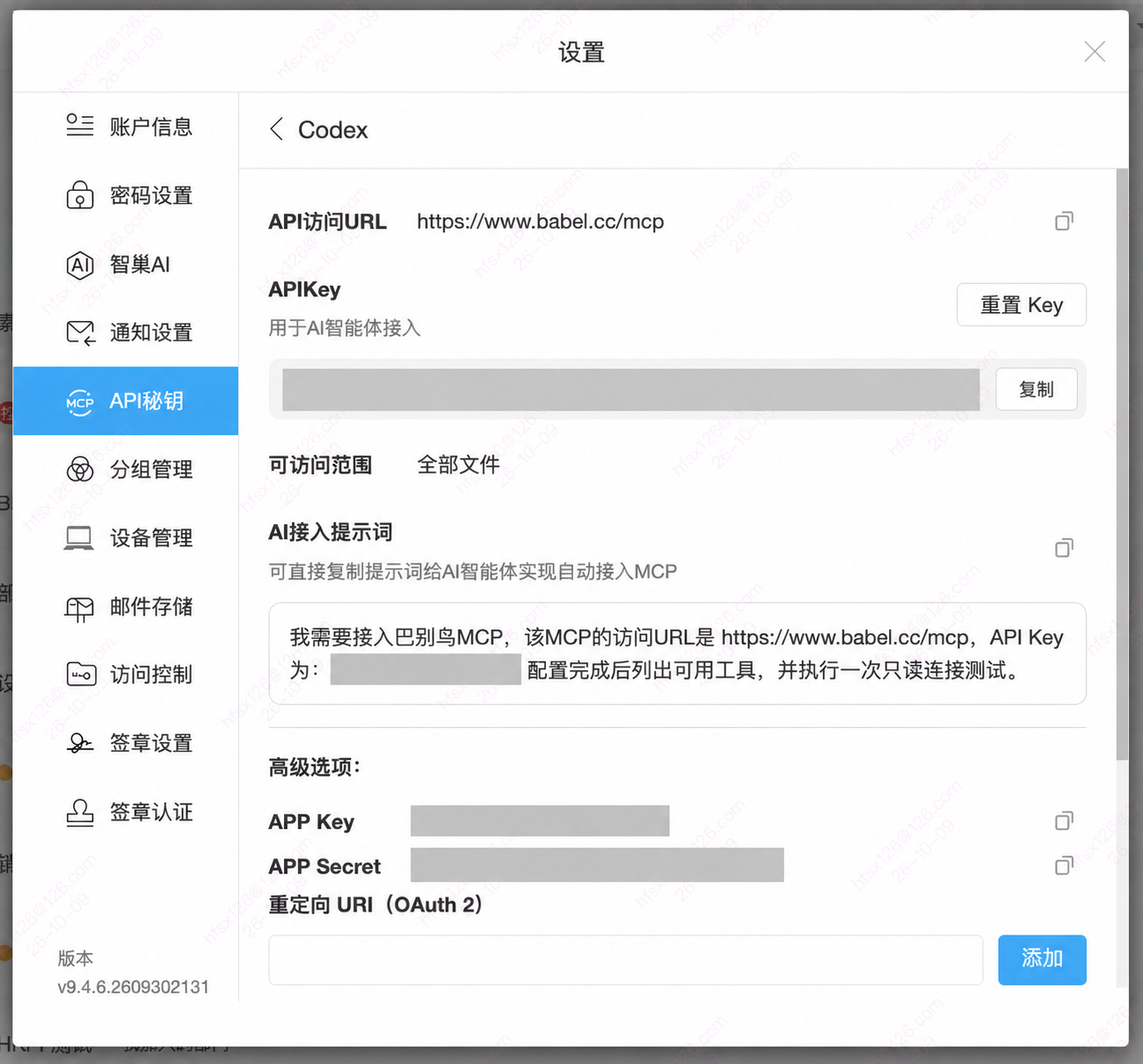
| UI field | How to use it |
|---|---|
| API access URL | The public-cloud URL is https://www.babel.cc/mcp; use the adjacent copy icon |
| APIKey | Select “Copy” to obtain this application's API Key for agent authentication |
| Accessible scope | Check the folder scope; “All files” means only files the current user is already authorized to access |
| AI connection prompt | Use the adjacent copy icon to copy the generated prompt for a trusted agent |
| Reset Key | Use when replacing a key, then update the agents configured with that key |
The simplest option is to copy the generated AI connection prompt. It includes the MCP URL, API Key, and a request to list tools and run a read-only connectivity test after setup. Alternatively, replace the placeholder in this template:
Connect BabelBird MCP for me. Name it BabelBird, use https://www.babel.cc/mcp as the URL, and authenticate with API Key <YOUR_API_KEY>. After setup, list the available tools and run one read-only connectivity test.Only provide a prompt containing a real key to a trusted agent in a private session. Do not post it to a group chat, public ticket, or source repository. If an agent cannot configure MCP automatically, add a remote MCP server manually, use https://www.babel.cc/mcp as its URL, and authenticate with this application's API Key.
For Codex, use an environment variable so the API Key is not stored directly in the configuration file:
[mcp_servers.babelbird]
url = "https://www.babel.cc/mcp"
bearer_token_env_var = "BABELBIRD_API_KEY"
3. Check File and Folder Permissions
Scroll down the application details page to Advanced Options and File and Folder Permissions. The access scope determines which files the application can reach, while the permission checkboxes determine the operations it can perform. Both remain subject to the user's existing permissions.
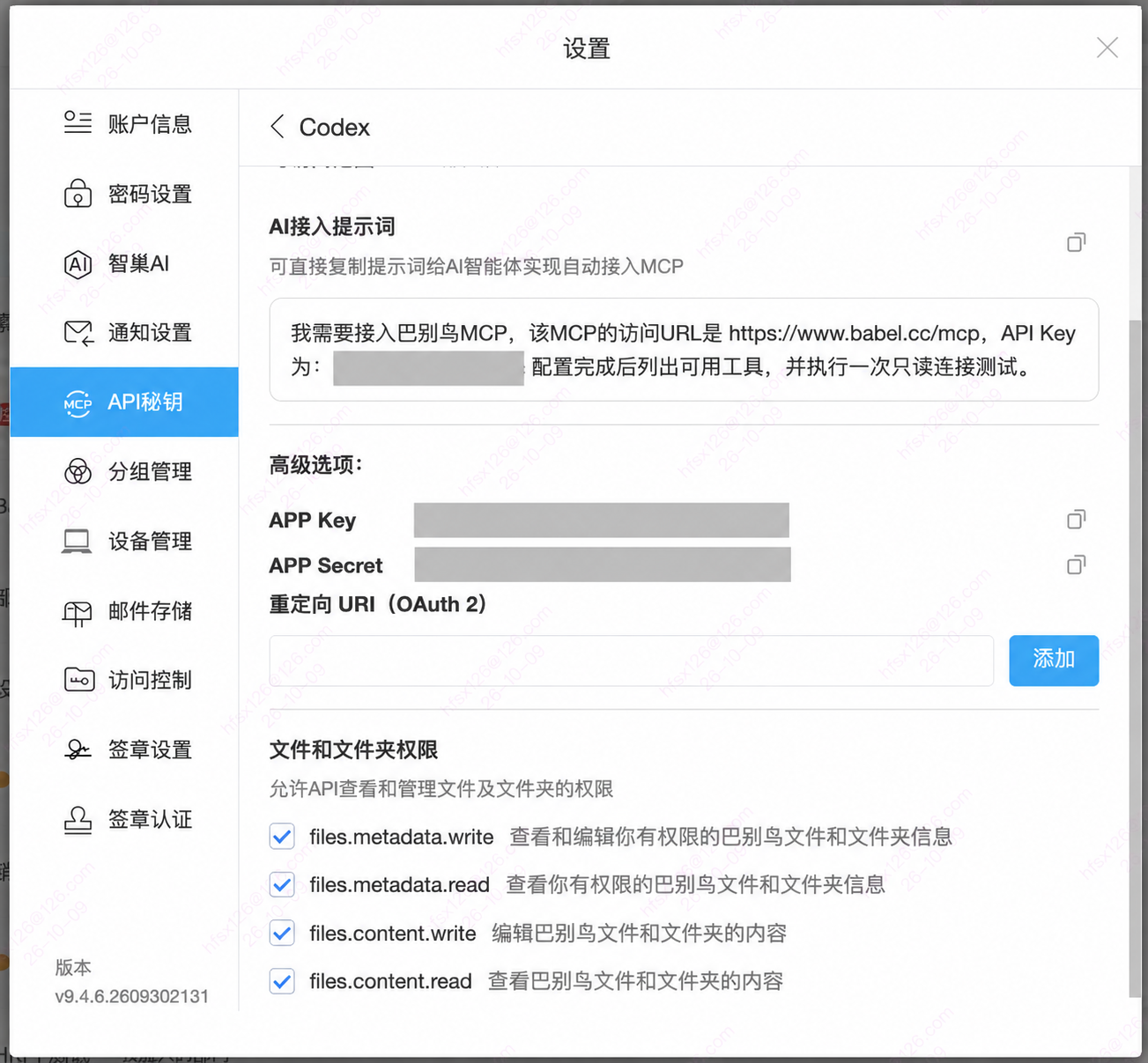
| Permission | Purpose |
|---|---|
files.metadata.read |
View metadata for authorized files and folders |
files.metadata.write |
View and edit metadata for authorized files and folders |
files.content.read |
View file and folder content |
files.content.write |
Edit file and folder content |
Prefer read permissions for queries and reading. Add write permissions only when the intended operations require creating, uploading, or updating files. Search, knowledge, and image retrieval also depend on the product edition, enterprise policy, and relevant indexes.
Advanced Options are separate from the MCP credential. APP Key, APP Secret, and the OAuth 2 redirect URI are for developer integrations that use an OAuth 2 authorization flow. An API Key-based MCP connection does not require a redirect URI. Do not substitute APP Key or APP Secret for APIKey.
4. Verify the Connection
List the available BabelBird MCP tools. Do not perform any write operation.Show my BabelBird storage usage and quota, then list my 10 most recently uploaded files.If getUsageAndQuota and the recent-file query both return results, the fixed URL, API Key, and read permissions are working.
5. Select a Project Workspace
Before writing, use ListFolder to browse Personal Files or the target project, then select an authorized folder:
List the folders under “Personal Files/AI Projects,” then use “Website Redesign” as the workspace. Only upload new files into that folder, and ask before updating an existing file.The agent should not upload when no workspace is selected, the folder is outside the API Key scope, or content write permission is missing.
Common Workflows
Find and read a file
- Use
searchFileNameByKeyto find candidates by file-name keyword, or browse withListFolder. - Use
getFileInfoByPathto confirm the path, type, size, and updated time. - Use
getFileContentto read content, orgetDownloadUrlto download the original file.
Create a folder and upload a file
- Use
createFolderin Personal Files or another authorized folder. - Use
getUploadUrlfor the destination folder and file name. - Upload to the returned URL, then verify with
ListFolderorgetFileInfoByPath.
Query knowledge and images
- Use
babel_query_knowledgefor vector search and source retrieval. - Use
babel_find_similar_imagesto retrieve similar images from text or an image file while respecting user permissions.
Prompt Examples
- “Show current storage usage and remaining quota.”
- “Get files uploaded in the last seven days and sort them by updated time.”
- “Query the BabelBird knowledge base for ‘contract archiving workflow’ and cite the source files.”
- “Search file names for ‘East China channel policy’ and return only files I can access.”
- “List PDFs under Personal Files and read the meeting notes.”
- “Find the top 20 images similar to file ID
xxxxand include their folders.” - “Create
AI Projects/Quarterly Review, request an upload URL, and save this output there.”
MCP Tool Catalog
Tool names are case-sensitive. Use the exact names below.
| Tool | Purpose | Type |
|---|---|---|
ListFolder |
List files and subfolders in a folder or current workspace | Read-only |
getFileContent |
Read the content of an authorized file | Read-only |
getUsageAndQuota |
Return used storage and available quota | Read-only |
getDownloadUrl |
Return a download URL for an authorized file | Read-only |
searchFileNameByKey |
Search file names by keyword | Read-only |
getUploadUrl |
Request an upload URL for a destination folder and file | Write preparation |
createFolder |
Create a folder in Personal Files or an authorized location | Write |
getFileInfoByPath |
Resolve file or folder information from a full path | Read-only |
babel_get_workspace |
Return the selected project workspace and access mode | Read-only |
babel_set_workspace |
Select an authorized folder as the current workspace | Context setting |
babel_get_recent_files |
Return recently uploaded or updated files | Read-only |
babel_query_knowledge |
Query enterprise knowledge or vector search and return sources | Read-only |
babel_find_similar_images |
Retrieve similar images from text or an image file ID | Read-only |
The current catalog does not expose high-risk operations such as delete, move, external sharing, or permission changes. Before calling getUploadUrl or createFolder, the agent should identify the destination and intended operation and check for existing files.
Permissions and Security
- Inherit user permissions: MCP can only access content the current user can already view or edit.
- Restrict folders: choose Application folder or Full access for the intended use. Prefer an application folder; paths cannot bypass the authorized scope.
- Separate read and write scopes: search and read access do not imply upload access.
- Use one key per agent: separate API Keys simplify revocation and auditing.
- Keep an audit trail without recording the API Key value.
- Minimize output and only return the fields or excerpts required for the task.
- Identify the destination and file name before requesting an upload URL.
- Protect credentials: both API Key and APP Secret are sensitive. The copied AI connection prompt also contains the API Key. If that key may have been exposed, select “Reset Key” in the application's details and update every agent configured with it.
FAQ
Where do I copy the API Key?
Open Settings > API Keys, select the application, and click “Copy” in the APIKey section near the top, or copy the AI connection prompt. Do not use APP Key or APP Secret from Advanced Options as the MCP key.
Are API Key, APP Key, and APP Secret the same?
No. API Key is the credential used for the MCP agent connection described here. APP Key and APP Secret are application credentials for the relevant developer authorization flow. For MCP, copy the value explicitly labeled APIKey.
Do I need to update my agents after resetting the key?
Yes. After selecting “Reset Key,” update every agent that uses this application's key with the new API Key, then run a read-only connection test. The public-cloud MCP URL does not change when a key is reset.
Does the public-cloud MCP URL change by user or API Key?
No. The BabelBird public-cloud MCP URL is always https://www.babel.cc/mcp. Users and agents are identified and authorized with their own API Keys.
Can one user create multiple API Keys?
Yes. Use separate keys for different agents, projects, or permission scopes. Disabling one API Key does not affect the others.
Why can the agent not find a file?
Check the user's original permission, the API Key folder scope, the read scopes, and whether the file has completed search or vector indexing. MCP never expands the user's existing access.
Why does upload begin with getUploadUrl?
getUploadUrl validates the destination and returns an upload URL. Define the folder and file name first, upload to the returned URL, and verify with ListFolder or getFileInfoByPath.
Which URL is used for a private deployment?
The fixed https://www.babel.cc/mcp URL is for BabelBird public cloud only. A private deployment uses the enterprise's own MCP URL, provided by its administrator or implementation team.
How It Works
Codex / WorkBuddy / OpenClaw / Other agents
                       │
       Fixed URL https://www.babel.cc/mcp
                    + API Key
                       │
                       ▼
                 BabelBird MCP Gateway
       Identity · permission intersection · scope · audit
             ┌─────────┼─────────┐
             ▼         ▼         ▼
          Files     Search/OCR  Zhichao AI
                              Vector/Image Search